A live interpreter for any Dialpad call
Add a live AI interpreter to any Dialpad call from a Chrome side panel. Pick two languages, use Dialpad's Add a caller to dial in the TalkTool number, and translate both sides in real time — with a live transcript on screen. No integration, no admin setup.
How do I add a live interpreter to a Dialpad call?
Use the TalkTool Live Call Interpreter Chrome extension. Open the side panel, pick the two languages, and TalkTool gives you a number to add to your active Dialpad call. Click Add a caller, enter the number on the keypad, and Dialpad rings it into the call — an AI interpreter joins as a third participant and translates both sides in real time, with a live transcript on screen. It uses Dialpad's own Add a caller and Merge, so there's no integration to install and nothing for the person you're calling to download.
Key Facts
- Works in the Dialpad desktop & web app
- Uses Dialpad's own Add a caller + Merge
- Live two-way interpretation in 60+ languages
- ~1–2 second real-time translation
- Live, side-by-side transcript on screen
- Nothing for the person you're calling to install
A Dialpad interpreter that just rides along
Live interpretation built on the Add a caller and Merge already on your call screen.
Rides along with Dialpad
No admin setup, no integration to enable. The interpreter joins over the phone using Add a caller and Merge — the same controls already on your Dialpad call screen.
60+ languages
Pick the language you speak and the one your caller speaks — Spanish, Mandarin, Vietnamese, Arabic, Tagalog, and 55+ more. Switch any time.
In your Chrome side panel
The TalkTool panel sits next to the Dialpad app in your browser. Open it, pick your languages, and you're ready — no app to switch to.
Type-to-speak
When a name or place is hard to catch, type it and TalkTool speaks a clean translation to your caller — so the important details land.
Live transcript
Both languages on screen as you talk, saved to your TalkTool dashboard with an AI summary when the call ends.
Works on any Dialpad plan
Dialpad desktop or web — if your call screen has Add a caller and Merge, it works. No special tier required.
How to add an interpreter to a Dialpad call
- 1
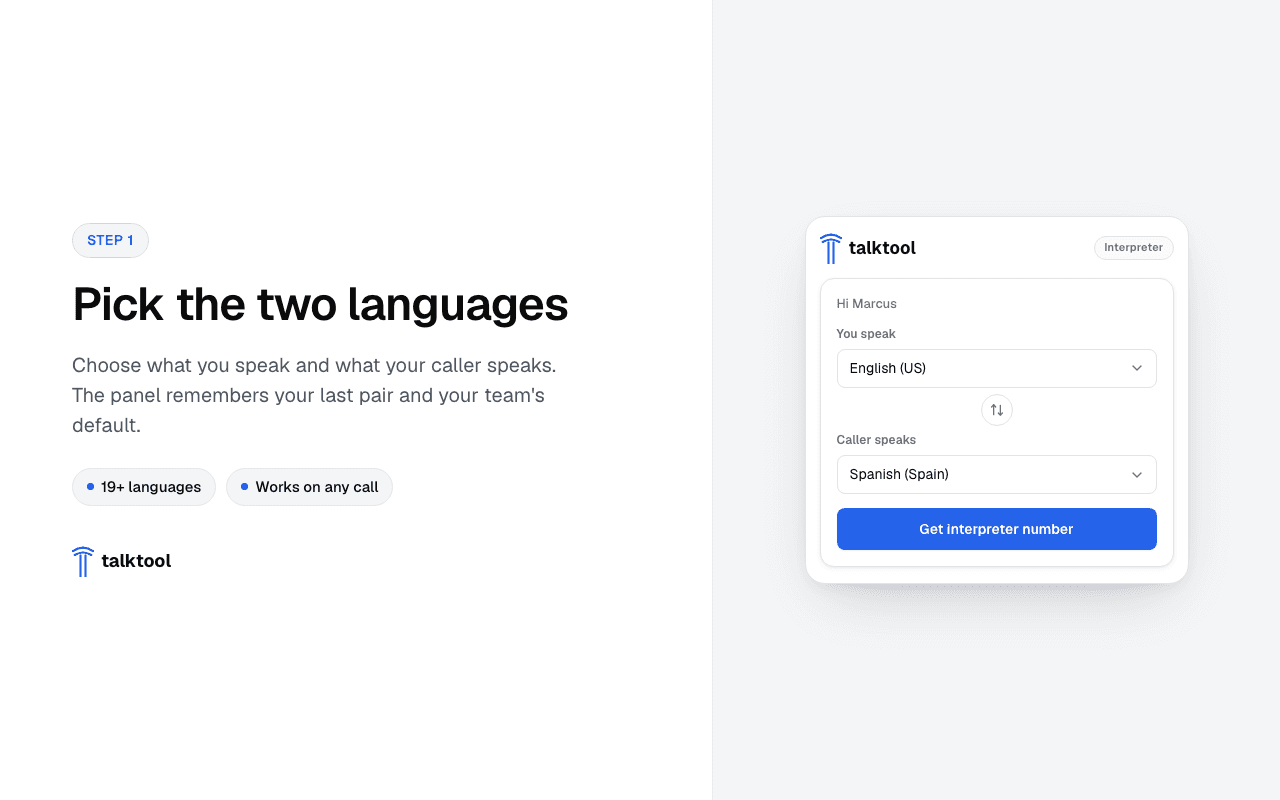
Pick your two languages
Open the TalkTool side panel in Chrome next to your Dialpad app — it signs you in with your existing TalkTool web session — and choose the language you speak and the language your caller speaks.
- Reuses your TalkTool login — no second sign-in
- Remembers your last-used language pair
- 2
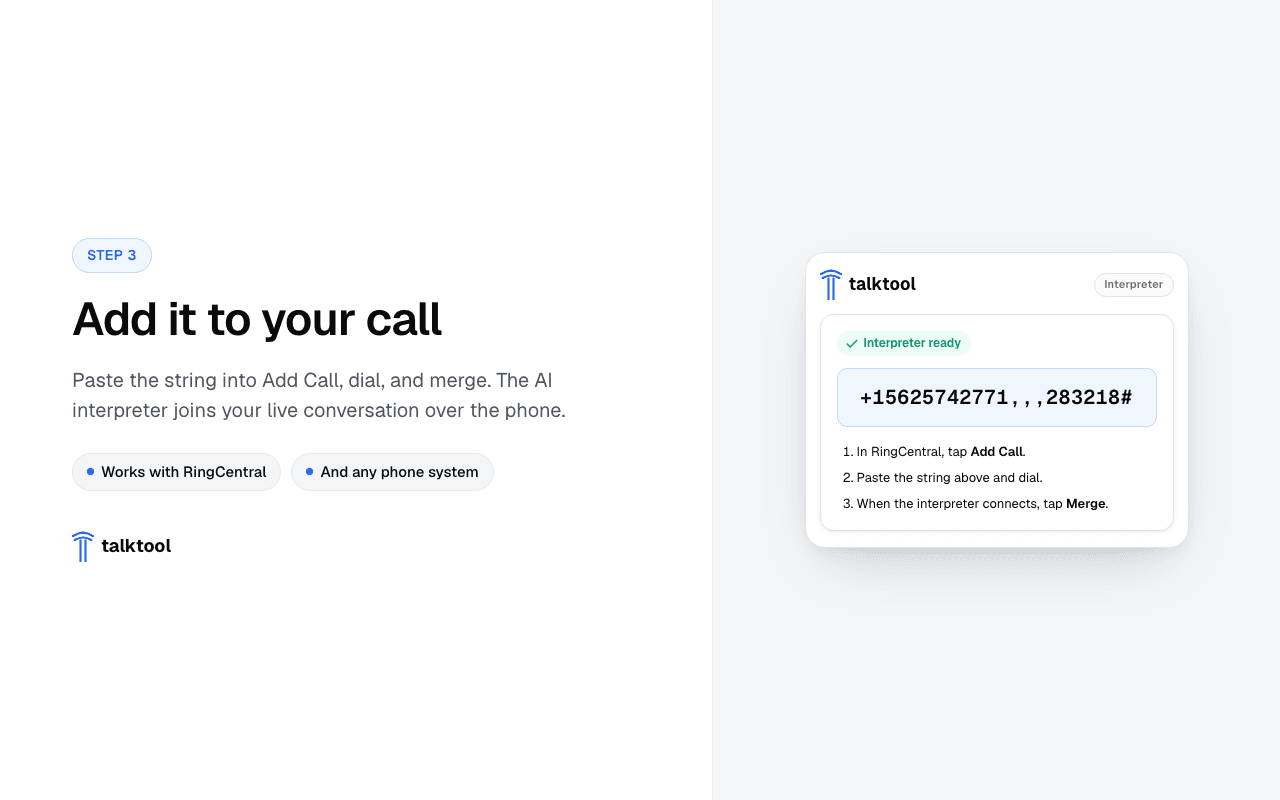
Add the TalkTool number to your Dialpad call
TalkTool hands you a phone number and a one-tap dial string. On your active Dialpad call, click Add a caller (the person-with-a-plus icon), enter the TalkTool number on the keypad, and Dialpad rings it into the call. When it connects, it joins as a third participant.
- Use Dialpad's Add a caller — or Merge an inbound leg
- Works in the Dialpad desktop and web app
- 3
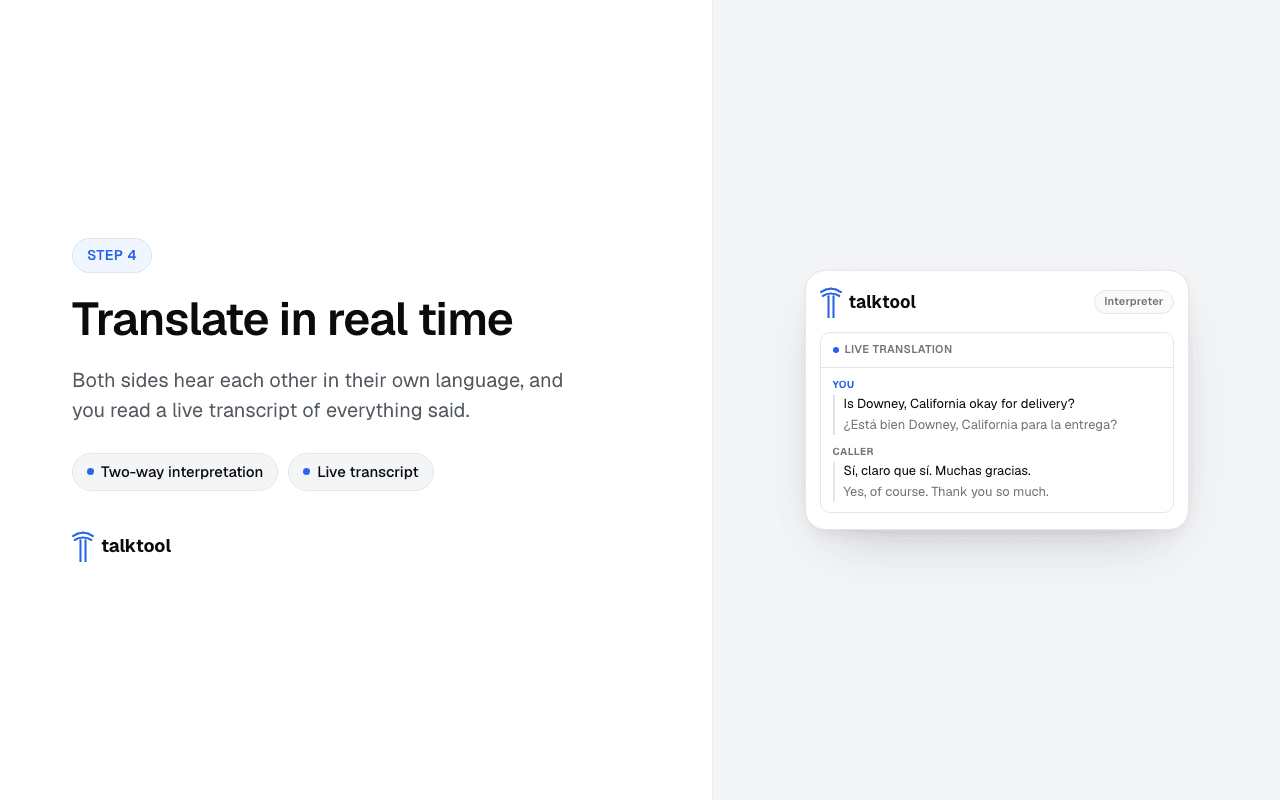
Talk — TalkTool interprets both sides
Speak naturally. TalkTool translates each side in real time — about one to two seconds — with a live transcript on screen so you can follow along and clarify anything important.
- Type-to-speak for hard-to-catch names
- Full transcript saved to your dashboard
Built on Dialpad's Add a caller and Merge
The interpreter bridges in over the phone, so there's no Dialpad integration to enable and no admin console to touch — if you can add a caller to a call, you can add an interpreter.
On an active Dialpad call, open the TalkTool side panel and pick your two languages. TalkTool gives you a phone number and a one-tap dial string. Click Add a caller (the person-with-a-plus icon on the call screen), enter the number on the keypad, and Dialpad rings it into the call as a third participant. From that moment, you hear your language and your caller hears theirs — in real time, about one to two seconds per turn. If a teammate is calling *you* to join an active call, use Merge instead.
Works in the Dialpad app you already use
It works the same in the Dialpad desktop app and the web app — and on mobile, where you can add a caller or use your phone's Add Call and Merge. Sign in once with your TalkTool account and the panel reuses your existing web session, so it's ready the moment you open it. Because the interpreter is a phone bridge, there's nothing to install on your phone system and nothing for the other party to download.
TalkTool is an independent product and is not affiliated with, or endorsed by, Dialpad.
Dialpad Interpreter FAQ
Stop paying the silent tax on missed calls.
Pick two languages, use Add a caller to dial in the TalkTool number, and talk. Free to install, usage billed by the minute.
14-day free trial · No credit card · Cancel anytime